This page contains affiliate links. If you purchase through them we may earn a small commission at no extra cost to you. Learn more
GivEnergy API and GivTCP: Local Control for Your Battery
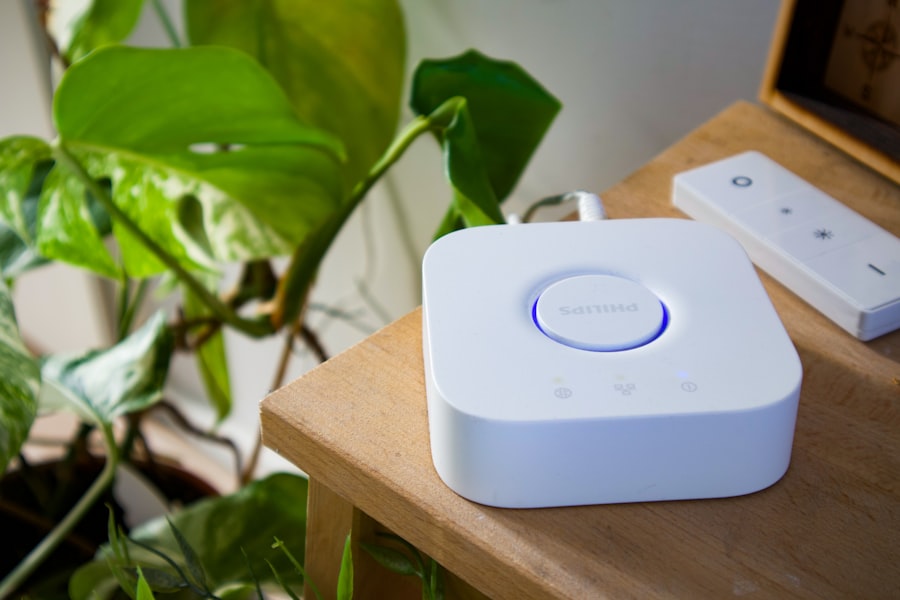
GivEnergy's open approach to APIs sets it apart from competitors. With GivTCP, you can control your battery locally — no cloud dependency, faster response times, and full integration with Home Assistant for sophisticated automation.
Cloud vs Local Control
GivEnergy Cloud (Default)
When you install a GivEnergy system, it connects to GivEnergy's cloud servers via WiFi. The GivEnergy app and portal show your data via this cloud connection. It works well, but:
- Data updates every 5–60 seconds (varies)
- Control commands go via the internet — slower and dependent on cloud availability
- If GivEnergy's servers go down, you lose monitoring and control
- API rate limits apply
GivTCP (Local)
GivTCP connects directly to your inverter over your home network. It reads data and sends commands locally:
- Data updates in real time (sub-second)
- Control commands are instant — no internet dependency
- Works even if your internet or GivEnergy's cloud is down
- No API rate limits
- Full control of all inverter settings
For Home Assistant and Predbat users, local control via GivTCP is strongly recommended.
What GivTCP Can Do
Read Data
- Real-time solar generation (W)
- Battery state of charge (%)
- Battery charge/discharge rate (W)
- Grid import/export (W)
- Household consumption (W)
- Inverter temperature
- Daily/lifetime generation totals
- Individual string voltages and currents
Control the Inverter
- Set battery charge rate
- Set battery discharge rate
- Set charge target (% SOC)
- Set discharge cutoff (% SOC)
- Switch between modes (eco, timed charge, timed export)
- Set charge/discharge time windows
- Enable/disable battery discharge
- Force charge from grid
- Force export to grid
This level of control is what makes GivEnergy the preferred battery for UK solar automation enthusiasts.
Setting Up GivTCP
Prerequisites
- GivEnergy inverter connected to your WiFi network
- Home Assistant running (on Raspberry Pi, mini PC, or server)
- The inverter's local IP address (find it in your router's connected devices list)
Step 1: Find Your Inverter IP
Log into your router and look for a device named "GivEnergy" or similar in the connected devices list. Note the IP address (e.g., 192.168.1.105).
Set a Static IP
Assign a static IP address to your inverter in your router settings. This prevents the IP from changing when the inverter reconnects to WiFi, which would break the GivTCP connection. Most routers let you "reserve" an IP for a specific device's MAC address.
Step 2: Install GivTCP
GivTCP runs as a Home Assistant add-on or Docker container:
Home Assistant Add-on (easiest):
- Add the GivTCP repository to your HA add-on store
- Install the GivTCP add-on
- Configure with your inverter IP address and serial number
- Start the add-on
Docker Container (for advanced users): Pull the GivTCP image and configure via environment variables. Useful if you're running HA as a container or have a separate server.
Step 3: Configure
Key configuration settings:
- Inverter IP: The local IP address noted above
- Number of inverters: Usually 1 for residential
- Battery count: Number of battery units connected
- MQTT settings: If using MQTT (recommended for HA integration)
Step 4: Verify
Once running, GivTCP creates MQTT entities in Home Assistant:
sensor.givtcp_XX_pv_power— current solar generationsensor.givtcp_XX_battery_soc— battery percentagesensor.givtcp_XX_grid_power— grid import (positive) or export (negative)sensor.givtcp_XX_load_power— household consumption
Check that these sensors update in real time. If they do, GivTCP is working correctly.

Using GivTCP with Home Assistant
Energy Dashboard
Map GivTCP sensors to HA's Energy Dashboard:
- Solar production:
sensor.givtcp_XX_pv_energy_today - Grid consumption:
sensor.givtcp_XX_import_energy_today - Grid export:
sensor.givtcp_XX_export_energy_today - Battery charge:
sensor.givtcp_XX_battery_charge_energy_today - Battery discharge:
sensor.givtcp_XX_battery_discharge_energy_today
Real-Time Power Flow
Use a power flow card (e.g., Tesla Style Solar Card) to visualise real-time energy flows between solar, battery, grid, and home. This is the most satisfying dashboard to watch — seeing solar power your home and charge your battery in real time.
Battery Control Automations
GivTCP provides service calls for battery control:
Force charge:
Call givtcp.set_charge_target with the desired SOC percentage
Set charge window:
Call givtcp.set_charge_start and givtcp.set_charge_end with times
Disable discharge:
Call givtcp.set_discharge_rate with 0
These service calls are what Predbat uses under the hood to optimise your battery schedule.
GivTCP for Predbat
Predbat requires GivTCP (or similar local control) to manage your battery. The connection is:
- Predbat reads Octopus pricing and Solcast forecasts
- Predbat calculates the optimal battery schedule
- Predbat sends commands to GivTCP
- GivTCP sends commands to the inverter locally
- The inverter charges/discharges accordingly
This happens every 30 minutes, adjusting as forecasts and actual conditions change.
GivTCP Version Matters
Predbat requires a minimum GivTCP version to function correctly. Check the Predbat documentation for compatibility. Using an outdated GivTCP version can cause control commands to fail silently — the battery won't respond to Predbat's instructions but no error appears. Keep GivTCP updated.
The GivEnergy Cloud API (Alternative)
If you prefer not to run GivTCP locally, GivEnergy also provides a cloud API:
- Documentation: api.givenergy.cloud
- Access: Register for an API key via the GivEnergy portal
- Features: Read data, control battery, access historical data
- Limitations: Rate-limited, internet-dependent, slightly delayed data
The cloud API works with Home Assistant via the GivEnergy Cloud integration (HACS). It's simpler to set up than GivTCP but less responsive and less reliable for automated battery management.
For Predbat and other real-time automations, GivTCP is strongly recommended over the cloud API.
Troubleshooting Common Issues
"Can't connect to inverter"
- Verify the IP address is correct
- Check the inverter is connected to WiFi (check the inverter display or GivEnergy app)
- Ensure HA and the inverter are on the same network/VLAN
- Try pinging the inverter IP from HA
"Sensors not updating"
- Check MQTT broker is running (Mosquitto add-on in HA)
- Restart GivTCP add-on
- Verify serial number in configuration matches your inverter
"Control commands not working"
- Check GivTCP version compatibility
- Verify the inverter firmware is up to date
- Some commands are only available in certain inverter modes
To get the most from GivTCP, you need a GivEnergy inverter and battery:
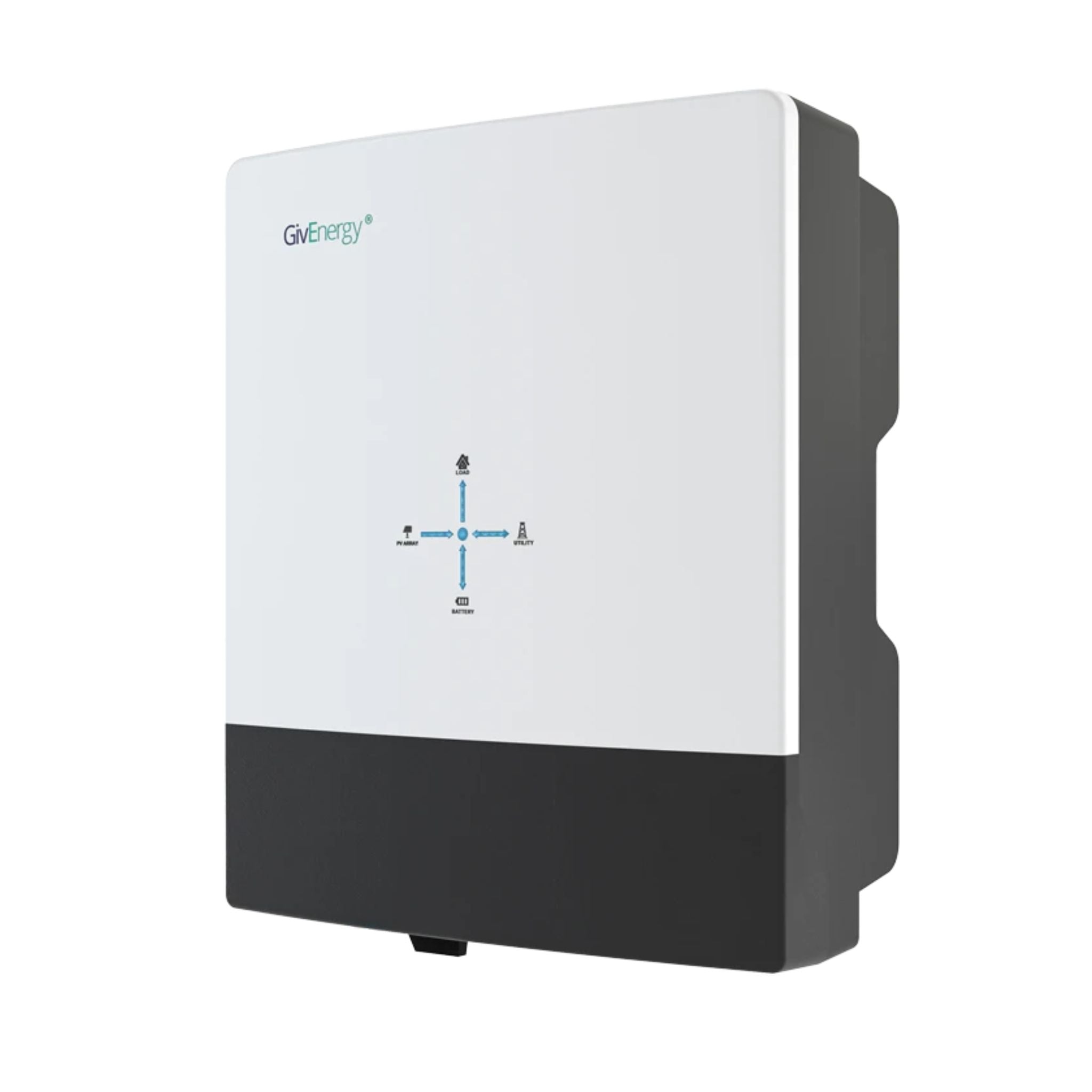
GivEnergy All-in-One 5kW Hybrid Inverter
£1,2005
7.5
2
48V
Affiliate link — we may earn a small commission at no extra cost to you
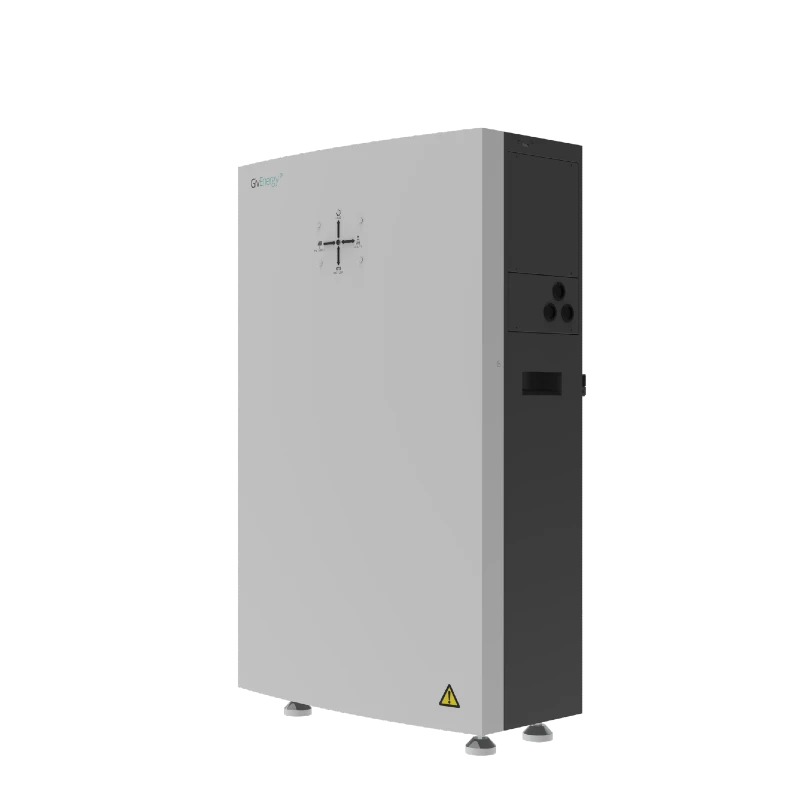
GivEnergy All-in-One 9.5kWh Battery
£5,5009.5
8.6
LFP
6000
Affiliate link — we may earn a small commission at no extra cost to you
Why This Matters
The ability to locally control your battery is what makes sophisticated automation possible. Without it, you're limited to the manufacturer's app and basic scheduling. With GivTCP + Home Assistant + Predbat, you have a fully automated energy management system that responds to pricing, weather, and your usage patterns in real time.
This is one of the key reasons GivEnergy is the most popular battery choice for UK solar enthusiasts — the open API philosophy enables a level of control that competitors (particularly Tesla) don't match.
For the full Home Assistant setup, see our Home Assistant guide. For Predbat configuration, see our Predbat guide.
Share this article

The UK's fastest boiler installation service — from quote to fitted in as little as 24 hours. Award-winning, Trustpilot rated, with no pushy salesmen.
Affiliate link — we may earn a small commission at no extra cost to you
Stay informed
Get free solar updates direct to your inbox
Related reading

Home Assistant for Solar: Monitoring and Automation
Use Home Assistant to monitor and automate your solar panel system. Setup guide for UK solar owners — dashboards, automations, and energy management.
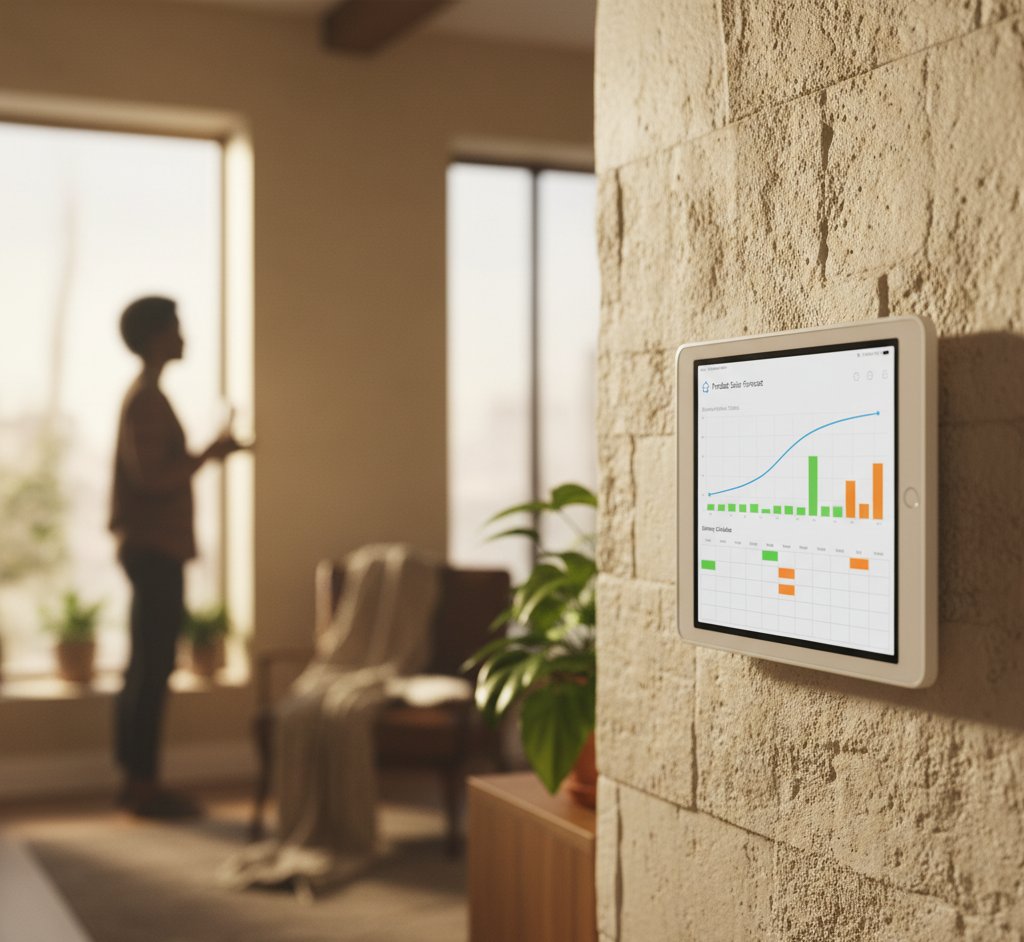
Predbat: Automated Battery Scheduling for Octopus Tariffs
Predbat automates your home battery to maximise savings on Octopus Agile, Flux, and other time-of-use tariffs. Setup guide, how it works, and realistic savings.
GivEnergy vs Tesla Powerwall: Battery Comparison
GivEnergy vs Tesla Powerwall 3 compared for UK homes. Capacity, price, features, app quality, and real-world performance from actual owners.


Switch to Octopus Energy
Get 50 credit when you switch. We get 50 too — win-win.
What does this mean for YOUR home?
Design your perfect solar setup in under 3 minutes. Free, no sign-up required.
Build Your Solar System