This page contains affiliate links. If you purchase through them we may earn a small commission at no extra cost to you. Learn more
Solar App Showing Zero Generation? Fix Your Monitoring
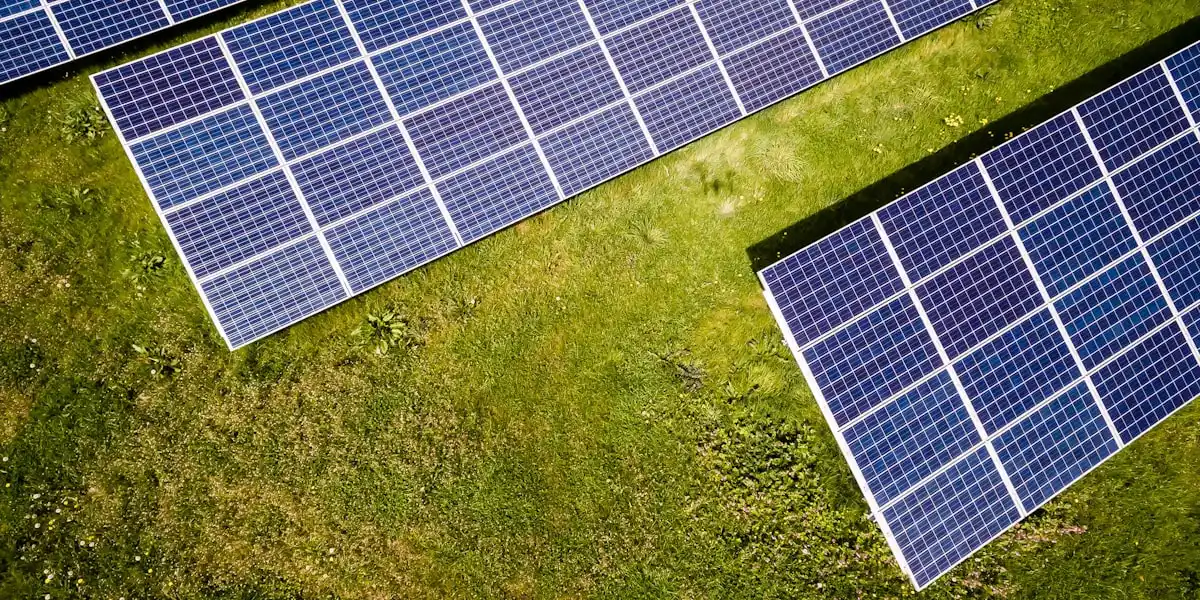
Monitoring offline does not mean panels offline
When your solar app shows zero, it's easy to assume the worst. In most cases, your panels are working fine — it's the data pipeline between your inverter and the app that has broken down.
Think of monitoring as a chain:
Panels → Inverter → Data logger/dongle → Your home WiFi → Manufacturer's cloud servers → App on your phone
Any link in that chain can fail independently. A break anywhere shows up as zero in the app. But unless the inverter itself has failed, your panels are almost certainly still pushing electricity into your home.
The physical generation meter is the ground truth
Every grid-connected solar installation has a physical generation meter — a small box, usually near your consumer unit or inverter, with a spinning disc or digital display. This meter increments with every unit of electricity your panels produce, regardless of whether your WiFi is working or your app is connected. If the reading has gone up since yesterday, your panels are generating. The app is wrong, not your system.
The guide to reading your generation meter walks you through locating yours and understanding what you're looking at.
Cause 1: WiFi disconnected
This is by far the most common reason for a monitoring blackout.
Your inverter connects to your home WiFi to send data to the cloud. It can lose that connection because:
- Your router restarted — after a power cut or ISP issue, the router comes back up but the inverter doesn't automatically reconnect on all models.
- Your WiFi password changed — a router replacement or security update that changed your password will disconnect the inverter permanently until you update it.
- Signal is too weak — inverters in garages, lofts, or outbuildings are often at the edge of WiFi range. The connection works most of the time but drops intermittently, especially if a neighbour changed channel or a nearby device causes interference.
- The router moved or was replaced — if your router's IP range or SSID changed, the inverter may not know how to reconnect.
The fix is to reconnect the inverter to WiFi using either WPS (press the button on your router, then trigger WPS on the inverter) or the inverter's own access point (AP) mode, where you temporarily connect your phone directly to the inverter to update its WiFi credentials. The exact steps vary by brand — see the section below.
WiFi extenders for inverters in garages and lofts
If your inverter is in a detached garage, loft, or outbuilding, a standard home WiFi router often can't reach it reliably. A WiFi extender or mesh node placed in the intermediate space (e.g., inside the house near the garage wall) dramatically improves connection stability. Powerline adapters — which send network data through your mains wiring — are another good option, particularly for garages where the ring main already runs.
Cause 2: Data logger or dongle fault
Most inverters send data via a small USB or WiFi dongle plugged into a port on the inverter's front or side. These dongles are simple devices, but they occasionally freeze or fail.
How to check:
- Look at the LED lights on the dongle. Most show one LED for power, one for WiFi connection, and sometimes a third for data transmission. A solid amber or red light where you'd expect green, or no lights at all, points to a fault.
- If the power LED is off, the dongle may have lost contact with the inverter port — try replugging it firmly.
- If lights are on but the app still shows nothing, try unplugging the dongle, waiting 30 seconds, and plugging it back in. This restarts the dongle's firmware and often clears a freeze.
Some dongles (particularly older Growatt and Solis models) are known to freeze after extended uptime or following a grid power interruption. A 30-second unplug is the standard fix. If the dongle freezes repeatedly over days or weeks, the dongle itself may need replacing — contact your installer or the inverter manufacturer.
Cause 3: Cloud server outage
Even when your inverter and WiFi are working perfectly, you can see zero in the app if the manufacturer's servers are having problems. Cloud platforms go down for maintenance or due to unexpected faults.
How to check:
- Visit the manufacturer's status page or X (Twitter) account and search for recent posts from other users reporting the same issue. GivEnergy, Fox ESS, Solis, Sunsynk, and Growatt all have active user communities that quickly report outages.
- Check the app's "last updated" timestamp. If it says data was received from your system three hours ago but the app is now showing zero, a server-side display issue is likely.
Outages are usually resolved within a few hours. There is nothing to do on your end except wait. Your inverter continues generating and storing data locally; most inverters buffer several days of generation data and upload it when connectivity is restored.
Cause 4: Account not linked to your inverter
If you've just had a system installed, or if you've been given login credentials but never saw any data to begin with, the most likely cause is that your monitoring account has never been linked to your inverter's serial number.
During installation, your installer should register the inverter's serial number against your account on the manufacturer's platform. Some installers skip this step or leave it for you to do. If your app shows an empty dashboard rather than zero generation, this is probably what's happened.
How to fix it:
Find your inverter's serial number (printed on a label on the inverter body) and log into your account on the manufacturer's web portal. Look for an "add device" or "register system" option. If you can't find it, contact the manufacturer's support line — they can usually complete the linking remotely.
Check this within your installer's workmanship warranty period
Most MCS-certified installers offer a workmanship warranty (often one to two years). If monitoring was never set up correctly, that's a commissioning fault. Raise it with your installer in writing while you're within the warranty period rather than trying to fix it yourself.
Cause 5: Inverter in standby or night mode
At night, or during very heavy cloud cover, your inverter enters standby mode. There is no solar generation, so it genuinely reports zero — and this is completely normal.
Some monitoring apps don't make it obvious that the system is in planned standby versus an unexpected outage. If you check the app in the evening and see zero, it almost certainly means the sun has gone down and the inverter is resting until morning. Check again at mid-morning on a reasonably clear day before drawing any conclusions.
On overcast winter days, generation can be so low that the app rounds it to zero even though the panels are producing a small amount. The inverter is working; there simply isn't enough light to produce meaningful output.
Cause 6: App showing stale or cached data
Some monitoring apps cache data locally and don't update the display even when fresh data is available. If you've had the app open in the background for a long time, what you're seeing may not be live.
Quick fix:
- Force-close the app completely (swipe it away on iOS or Android, don't just press home).
- Reopen the app and let it load fresh data.
- Check the "last updated" timestamp, which most apps display somewhere on the dashboard. If it refreshed in the last few minutes and shows zero, the problem is upstream. If the timestamp is hours old, the app simply hasn't fetched new data yet.
Logging out and back in to the app, or uninstalling and reinstalling it, can also clear persistent caching issues.
How to fix WiFi issues by inverter brand
The reconnection process differs between manufacturers. Here's a quick-reference guide for the most common systems in the UK:
GivEnergy
- Open the GivEnergy app and go to Settings → WiFi Configuration.
- Select your network from the list and enter your password.
- Alternatively, use WPS: press the WPS button on your router, then navigate to the WPS option in the inverter's WiFi settings within two minutes.
- Allow five to ten minutes for the inverter to reconnect and data to appear in the portal.
Fox ESS
- Open the Fox Cloud app and tap the inverter tile.
- Go to Settings → Network and select Change WiFi.
- The inverter broadcasts a temporary access point — connect your phone to it (network name starts with
FOX_), follow the prompts to select your home network and enter the password. - Your phone will reconnect to your home WiFi and the inverter should appear online within a few minutes.
Solis
- Open the SolisCloud app and navigate to your plant.
- Tap the logger icon and select WiFi Settings.
- Use the in-app flow to connect to the inverter's AP (network name starts with
AP_), choose your home WiFi, and enter credentials. - Alternatively, use WPS if your router supports it: hold the WPS button on the router, then hold the reset button on the Solis data logger for three seconds.
Sunsynk
- Open the Sunsynk Connect app.
- Go to Device Settings → Network Settings → WiFi.
- Connect your phone to the inverter's AP (SSID shown in the app), enter your home WiFi details, and submit.
- The inverter restarts briefly and reconnects.
Growatt
- Open the ShinePhone app and navigate to the plant.
- Tap Device → WiFi Settings.
- Connect your phone to the Growatt data logger's AP (SSID starts with
Growatt_), enter your home WiFi password via the in-app wizard. - The logger restarts; data typically resumes within ten minutes.
Huawei FusionSolar
- Open the FusionSolar app.
- Go to Maintenance → Network Settings → WLAN.
- Use the WLAN configuration screen to enter updated WiFi credentials.
- If you can't reach the app, connect your phone directly to the inverter's AP (password is typically the SN of the device, or
Changeme) and configure network settings via the local web interface at192.168.200.1.
When zero really does mean zero
If you've checked the physical generation meter and it genuinely hasn't incremented during a sunny day, your panels have a real problem. This could be:
- The inverter has tripped a protection fault (check the inverter display for error codes)
- A string fuse has blown (no generation from some or all panels)
- Grid voltage is out of range and the inverter has disconnected for safety
- Physical damage to cables, connectors, or the inverter itself
The solar panels not generating guide walks through diagnosing each of these step by step. If you see error codes on the inverter display, note them down — they're the fastest route to a diagnosis.
Do not open the inverter or touch DC wiring yourself
Even with the AC supply isolated, DC cables from solar panels carry live voltage in daylight. Diagnosing faults beyond checking error codes and resetting circuit breakers should be done by a qualified electrician or your installer.
The nuclear option: factory reset the data logger
If your data logger is frozen and won't respond to a simple unplug-replug, most manufacturers support a factory reset. This is a last resort because:
- You'll need to go through the full WiFi setup process again as if from scratch.
- Some platforms (particularly older Growatt and Solis setups) store historical data on the logger itself — a factory reset can delete generation history that hasn't synced to the cloud.
Before factory resetting: Call the manufacturer's support line and describe the symptoms. They can often push a remote command to reset the logger without requiring you to touch anything. GivEnergy in particular has a good remote support capability.
If you do need to reset manually, hold the reset button on the data logger (usually a small recessed button requiring a pin) for ten seconds. The LEDs will flash to confirm the reset. Then follow the brand-specific WiFi setup steps above to reconnect.
The inverter firmware and monitoring guide has more detail on keeping your monitoring connection stable over the long term, including setting up alerts so you're notified the moment connectivity drops rather than discovering it days later.
Share this article

OVO has carefully selected trusted teams across the UK to install solar panels and heat pumps. Enjoy the personal touch of a local expert with the peace of mind of a household name.
Affiliate link — we may earn a small commission at no extra cost to you
Stay informed
Get free solar updates direct to your inbox
Related reading
Solar Panels Not Generating? Step-by-Step Diagnosis
Solar panels not producing electricity? A step-by-step diagnostic guide covering inverter faults, isolator switches, wiring issues, and when to call an installer.
Best Solar Monitoring Apps UK 2026: Every Brand Compared
Solar monitoring app comparison for UK homes. GivEnergy, SolarEdge, Enphase, Huawei, and Home Assistant compared side by side.
WiFi Dead Spots from Solar Inverters: Fixes
Why solar inverters can cause WiFi interference, which frequencies are affected, and practical fixes for wireless dead spots near your inverter in the UK.


Switch to Octopus Energy
Get 50 credit when you switch. We get 50 too — win-win.
What does this mean for YOUR home?
Design your perfect solar setup in under 3 minutes. Free, no sign-up required.
Build Your Solar System